
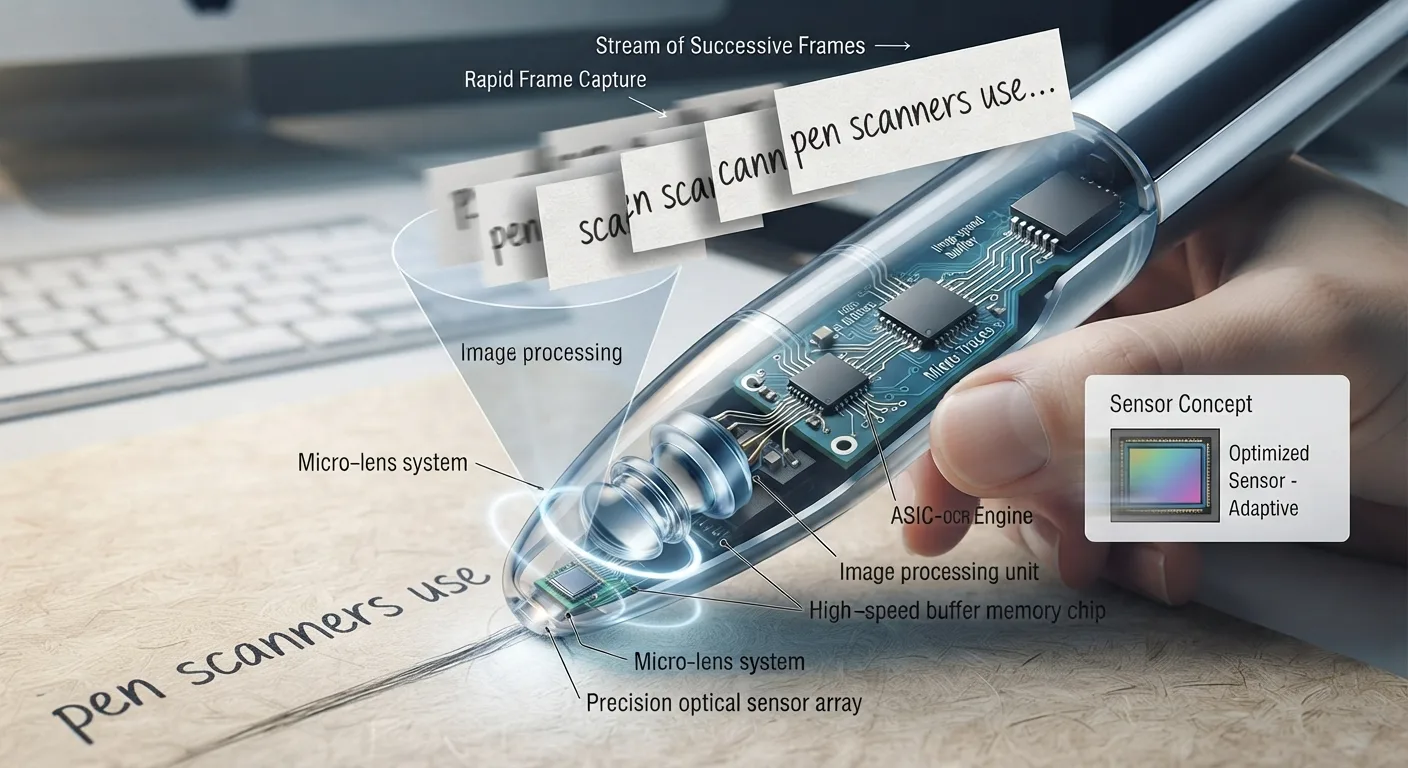
The Sub-Second Optical Pipeline: An Engineering Overview
To the person holding a pen scanner, the operation feels immediate: you slide the plastic tip across a sentence in a printed book, and before your hand reaches the right-hand margin, a voice speaks the words aloud or characters appear at your computer cursor. Behind that single fluid gesture lies a sophisticated real-time embedded systems pipeline.
Unlike a smartphone camera that captures an entire page from several inches away, a pen scanner is a contact instrument. It operates through continuous, line-by-line optical acquisition. Within 300 to 500 milliseconds, the hardware completes five distinct computational stages: illumination, high-frequency raster imaging, displacement-based frame stitching, neural character recognition, and digital dispatch.
| Pipeline Stage | Hardware Component | Typical Latency | Primary Operational Function |
|---|---|---|---|
| 1. Illumination & Trigger | Microswitch & Dual Surface LEDs | 0 – 5 ms | Detects paper contact pressure; illuminates print at controlled color temperature. |
| 2. Frame Acquisition | High-Speed CMOS Sensor (60–120 fps) | 5 – 250 ms (sweep duration) | Captures overlapping micro-bitmap frames at fixed focal length (approx. 2mm). |
| 3. Frame Stitching & Binarization | Onboard DSP / RISC Preprocessor | 20 – 40 ms | Matches overlapping pixel vectors, binarizes contrast, and straightens skew. |
| 4. Neural Character Classification | Embedded Neural OCR Core (ARM) | 30 – 80 ms | Classifies glyphs into Unicode text; applies lexical dictionary validation. |
| 5. Output Dispatch | Audio DAC / HID Keystroke Engine | 10 – 30 ms | Synthesizes phonetic audio to speaker/jack or streams keystrokes via USB/BLE. |
- Hardware Component
- Microswitch & Dual Surface LEDs
- Typical Latency
- 0 – 5 ms
- Primary Operational Function
- Detects paper contact pressure; illuminates print at controlled color temperature.
- Hardware Component
- High-Speed CMOS Sensor (60–120 fps)
- Typical Latency
- 5 – 250 ms (sweep duration)
- Primary Operational Function
- Captures overlapping micro-bitmap frames at fixed focal length (approx. 2mm).
- Hardware Component
- Onboard DSP / RISC Preprocessor
- Typical Latency
- 20 – 40 ms
- Primary Operational Function
- Matches overlapping pixel vectors, binarizes contrast, and straightens skew.
- Hardware Component
- Embedded Neural OCR Core (ARM)
- Typical Latency
- 30 – 80 ms
- Primary Operational Function
- Classifies glyphs into Unicode text; applies lexical dictionary validation.
- Hardware Component
- Audio DAC / HID Keystroke Engine
- Typical Latency
- 10 – 30 ms
- Primary Operational Function
- Synthesizes phonetic audio to speaker/jack or streams keystrokes via USB/BLE.
A pen scanner does not take a single snapshot of a line. It records a continuous video stream of overlapping microscopic frames at 60 to 120 frames per second, stitching them into a unified linear raster image before applying neural OCR.
Stage 1: Contact Illumination & the CMOS Sensor Tip
The front aperture of a pen scanner contains a spring-loaded mechanical or capacitive microswitch. The instant the user presses the nose against a sheet of paper, the device activates two specialized white or warm-white LEDs angled at approximately 45 degrees relative to the paper plane. This specific oblique illumination angle creates high contrast between the raised ink and the paper fibers while minimizing direct specular back-reflection into the lens.
Directly behind the transparent guide window sits a miniature CMOS image sensor with a fixed focal length calibrated to the exact depth of the nosepiece (typically 1.5mm to 3.0mm). Because human hand movement during reading is inherently unpredictable—ranging from slow, deliberate sweeps (5 cm/s) to rapid skimming (25 cm/s)—the sensor cannot rely on a single shutter release. Instead, it captures continuous, overlapping grayscale frames at 60 to 120 frames per second.
Stage 2: Real-Time Frame Stitching and Skew Correction
Because each individual CMOS frame captures only a small fraction of a word (a window roughly 8mm high by 4mm wide), the device must assemble these successive raster slices into a seamless, horizontal bitmap strip.
An embedded digital signal processor (DSP) analyzes overlapping regions between consecutive frames. By calculating optical flow displacement vectors—tracking identical clusters of dark pixels from frame N to frame N+1—the DSP determines the exact speed and direction of the user’s hand in real time.
This dynamic stitching algorithm compensates for normal human motor variation: if the hand speeds up, slows down, or tilts slightly off the baseline (between 60° and 90° from vertical), the algorithm scales and rotates the raster frames before fusing them into a unified line image. If the user sweeps too erratically—such as creating an extreme "S" curve or lifting the tip mid-sentence—the stitching matrix loses geometric coherence, resulting in dropped letters or character duplication.
Stage 3: Embedded Neural OCR & Character Recognition
Once a coherent line bitmap is synthesized, it enters the Optical Character Recognition engine. On modern devices (such as the Scanmarker Max or C-Pen Reader 2), this is not an outdated template-matching algorithm, but a lightweight convolutional-recurrent neural network (CRNN) compiled into embedded C++ binaries running directly on an onboard ARM Cortex-M or Cortex-A processor.
The OCR engine executes four key sub-routines:
1. Binarization and Normalization: The grayscale pixel matrix is converted to high-contrast binary (black and white) using dynamic thresholding algorithms (such as Otsu or Sauvola filtering), separating ink strokes from paper discoloration or shadows.
2. Glyph Segmentation: The software identifies vertical whitespace boundaries between words and character contours, isolating individual letterforms even when ligatures or tight font kerning touch.
3. Neural Classification: The network evaluates character topology—loops, crossbars, ascenders, descenders, and terminal strokes—matching them against learned statistical weights to emit standardized Unicode characters.
4. Lexical Dictionary Post-Processing: To prevent misreads between optically similar glyphs (such as lowercase "l", uppercase "I", and number "1"), the engine evaluates word tokens against on-device dictionary databases. If a word is statistically improbable in the active language model, the engine chooses the next highest probability character candidate.
Stage 4: The Output Fork — Standalone Audio vs. Connected Keystrokes
At the conclusion of the OCR stage, the pipeline forks depending on whether the hardware is a standalone reading pen or a connected digital highlighter:
In a Standalone Reading Pen: The Unicode text is immediately routed to an onboard Text-to-Speech (TTS) synthesizer. The TTS engine breaks words into phonemes, calculates prosodic inflection, and drives an internal digital-to-analog converter (DAC) that powers a built-in 0.5W speaker or 3.5mm/Bluetooth earphone circuit. The entire loop completes in 400 to 500 milliseconds.
In a Connected Digital Highlighter: The device does not synthesize audio locally. Instead, its firmware emulates a Human Interface Device (HID) keyboard over a USB cable or Bluetooth Low Energy (BLE) link. It streams the Unicode characters into the host computer or tablet as simulated keyboard scan codes, typing the text directly into Microsoft Word, Google Docs, or Notion at speeds exceeding 3,000 characters per minute.
Hardware Architecture: Inside a Standalone Reading Pen
A modern standalone reading pen packs the architecture of a dedicated mobile computer into a chassis weighing under 75 grams.
| Subsystem | Component Type | Technical Specification | Role in Operation |
|---|---|---|---|
| Micro-Camera | Contact CMOS Sensor | 60–120 fps / 640x480 resolution | Captures microscopic typography frames at fixed focal depth. |
| Illumination | Surface-Mount Dual LEDs | High-CRI 4500K / 45° angle | Delivers uniform illumination while preventing specular paper glare. |
| Main Processor | Embedded ARM SoC | Dual/Quad-Core Cortex 1.0–1.5 GHz | Executes real-time frame stitching, neural OCR, and UI management. |
| Memory & Storage | LPDDR + eMMC Flash | 512MB RAM / 4GB–16GB Storage | Houses multilingual offline OCR models and pronunciation dictionaries. |
| Audio System | Integrated Audio DAC & Amp | 16-bit / 44.1 kHz, 0.5W speaker | Drives voice synthesis through speaker, 3.5mm jack, or Bluetooth audio. |
| Power Management | Rechargeable Lithium-Polymer | 800 mAh – 1200 mAh (USB-C) | Provides 6 to 10 hours of continuous active line scanning. |
- Component Type
- Contact CMOS Sensor
- Technical Specification
- 60–120 fps / 640x480 resolution
- Role in Operation
- Captures microscopic typography frames at fixed focal depth.
- Component Type
- Surface-Mount Dual LEDs
- Technical Specification
- High-CRI 4500K / 45° angle
- Role in Operation
- Delivers uniform illumination while preventing specular paper glare.
- Component Type
- Embedded ARM SoC
- Technical Specification
- Dual/Quad-Core Cortex 1.0–1.5 GHz
- Role in Operation
- Executes real-time frame stitching, neural OCR, and UI management.
- Component Type
- LPDDR + eMMC Flash
- Technical Specification
- 512MB RAM / 4GB–16GB Storage
- Role in Operation
- Houses multilingual offline OCR models and pronunciation dictionaries.
- Component Type
- Integrated Audio DAC & Amp
- Technical Specification
- 16-bit / 44.1 kHz, 0.5W speaker
- Role in Operation
- Drives voice synthesis through speaker, 3.5mm jack, or Bluetooth audio.
- Component Type
- Rechargeable Lithium-Polymer
- Technical Specification
- 800 mAh – 1200 mAh (USB-C)
- Role in Operation
- Provides 6 to 10 hours of continuous active line scanning.
The 4 Physical Variables That Dictate Scan Accuracy
When users encounter inaccurate scans, they frequently assume the OCR software has failed. In reality, over 90% of recognition errors stem from physical capture variables that degrade the optical image before OCR algorithms ever evaluate it:
1. Sweep Speed and Acceleration: Optimal scanning speed is between 8 and 18 cm/second—roughly the speed of deliberate highlighter marking. Sweeping faster than 25 cm/s induces motion blur; sweeping too slowly induces tremor artifacts.
2. Contact Angle and Tilt: The sensor requires the optical guide window to remain flat against the page. Tilting the pen below 60 degrees lifts one edge of the focal plane, causing the top or bottom of letterforms to blur.
3. Paper Surface Coating: Uncoated book and copy paper provides ideal matte diffuse reflection. Heavy high-gloss clay coatings (found in art textbooks and magazines) create harsh specular glare that washes out character strokes.
4. Spine Curvature (Gutter Pinch): Thick hardcover books curve sharply into the center gutter. If the pen tip cannot press flat against the curved margin, characters at the beginning or end of the line are clipped.
Frequently Asked Questions
Practical answers to common questions about pen scanner internal mechanics and day-to-day operation.